
Setting Up Your Survey in Durvey.org
Step-by-Step Guide
This guide explains how to set up and test your Delphi survey in Durvey before starting the actual study. Following these steps ensures that your questionnaire, settings, and invitations work correctly before participants enter the survey.
1. Create an Account at Durvey.org
To start your Delphi study, you first need a Durvey account.
- Go to Durvey.org
- Click on Sign up / Create account
- Enter your email address and password
- Confirm your email if required
- Log in to your account
Once logged in, you can create and manage surveys from your dashboard.
2. Complete the Survey Wizard
After creating a new survey, Durvey will guide you through the Survey Wizard. In the wizard you define the basic setup of your project, for example:
- Survey title
- Delphi type (real-time or multiple-round)
- Number of theses / questions
- Dimensions you want your participants to rate (Likert scales, etc.)
- Feedback and comment settings including like-option
- Use of pre-phase (for real-time Delphi)
Don't worry—changes can be made later in the survey settings.
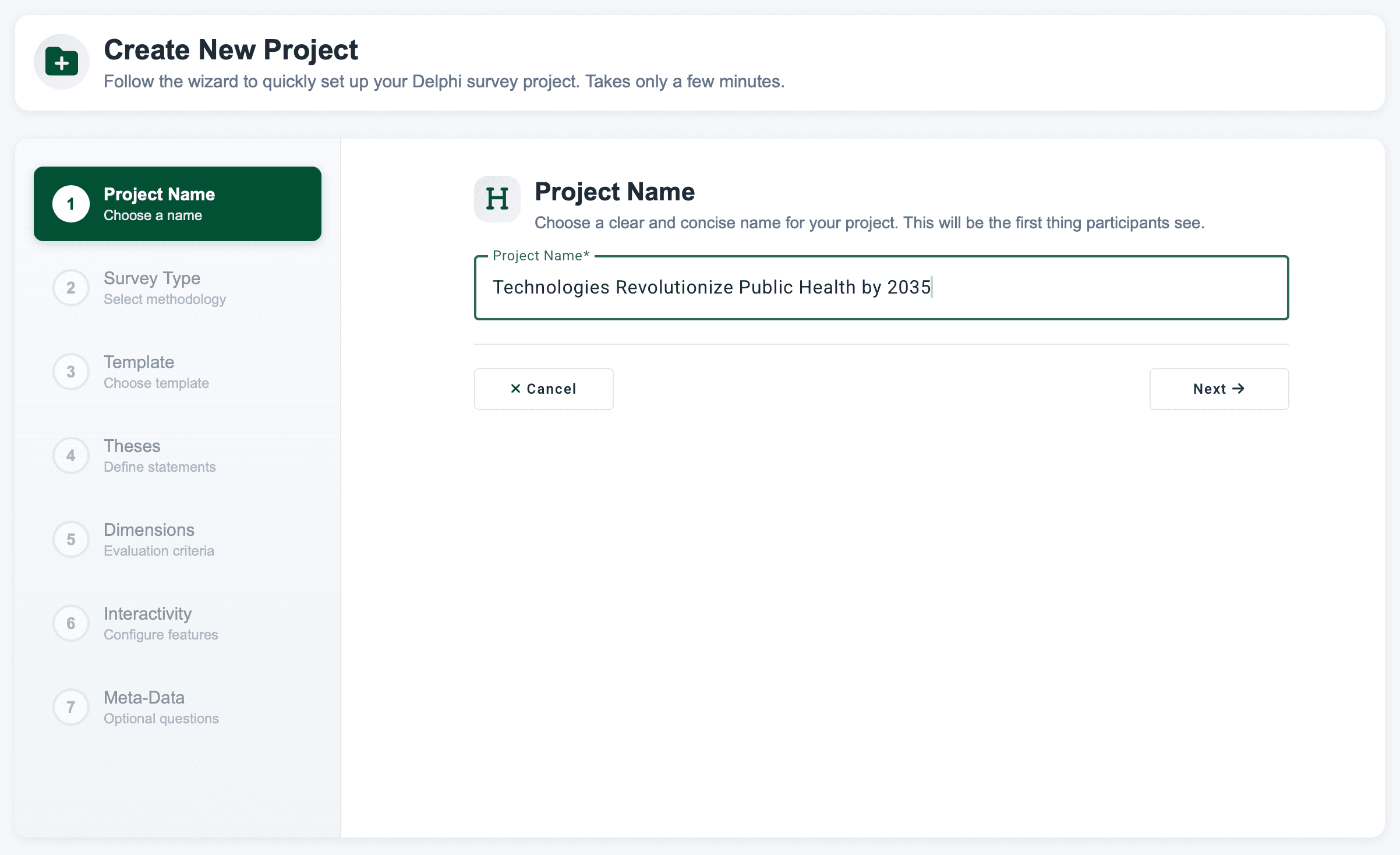
3. Preview the Survey and Revise Pages in the Survey Editor
After the wizard, you should review your questionnaire in the Survey Editor. In the editor you can:
- Check all questions and scales
- Edit wording
- Change response formats
- Adjust page structure
- Add or remove items
Use the Preview function to see the survey exactly as participants will see it. It is recommended to go through the entire survey at least once.
4. Check Survey Settings
Before testing the survey, verify the main settings. Important settings to review include, for example:
- Commenting enabled or disabled
- Real-time feedback options
- Pre-phase settings (if used)
- Etc.
Incorrect settings may affect the whole study, so this step is important.
5. Add Test Participants
Before inviting real experts, you should test the survey with test participants. Add test participants in the participant management section. You can use:
- Your own email
- Colleagues
- Dummy accounts
Testing with real invitations helps ensure that the full process works correctly.
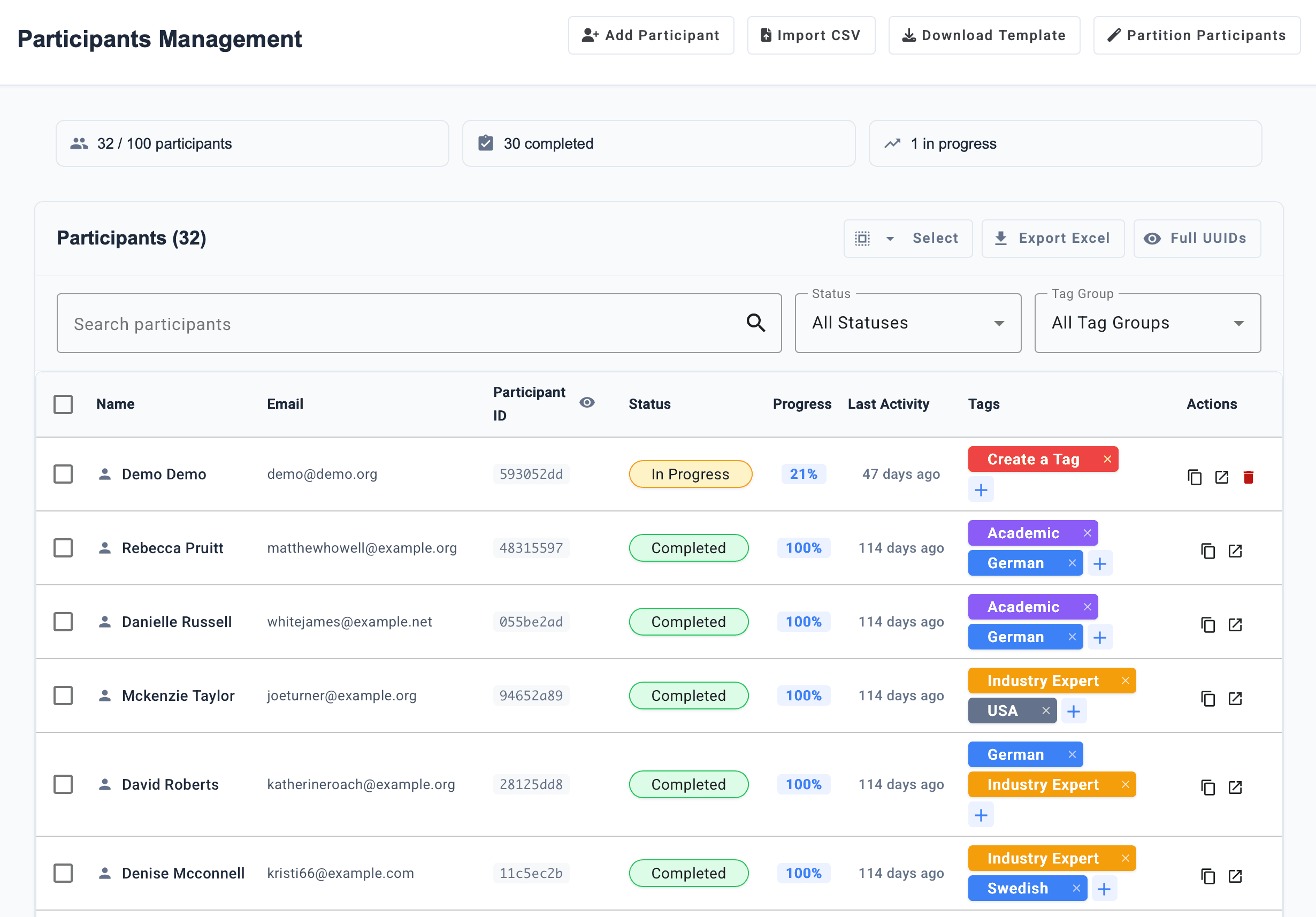
6. Create an Email Template in the Invitation Manager
Durvey uses the Invitation Manager to send emails. Create an email template that will later be used for participants. Typical content:
- Short explanation of the study
- Link to the survey (do not forget this)
- Deadline (optional)
- Contact information
You can create different templates for:
- Invitations
- Reminders
- Thank-you emails
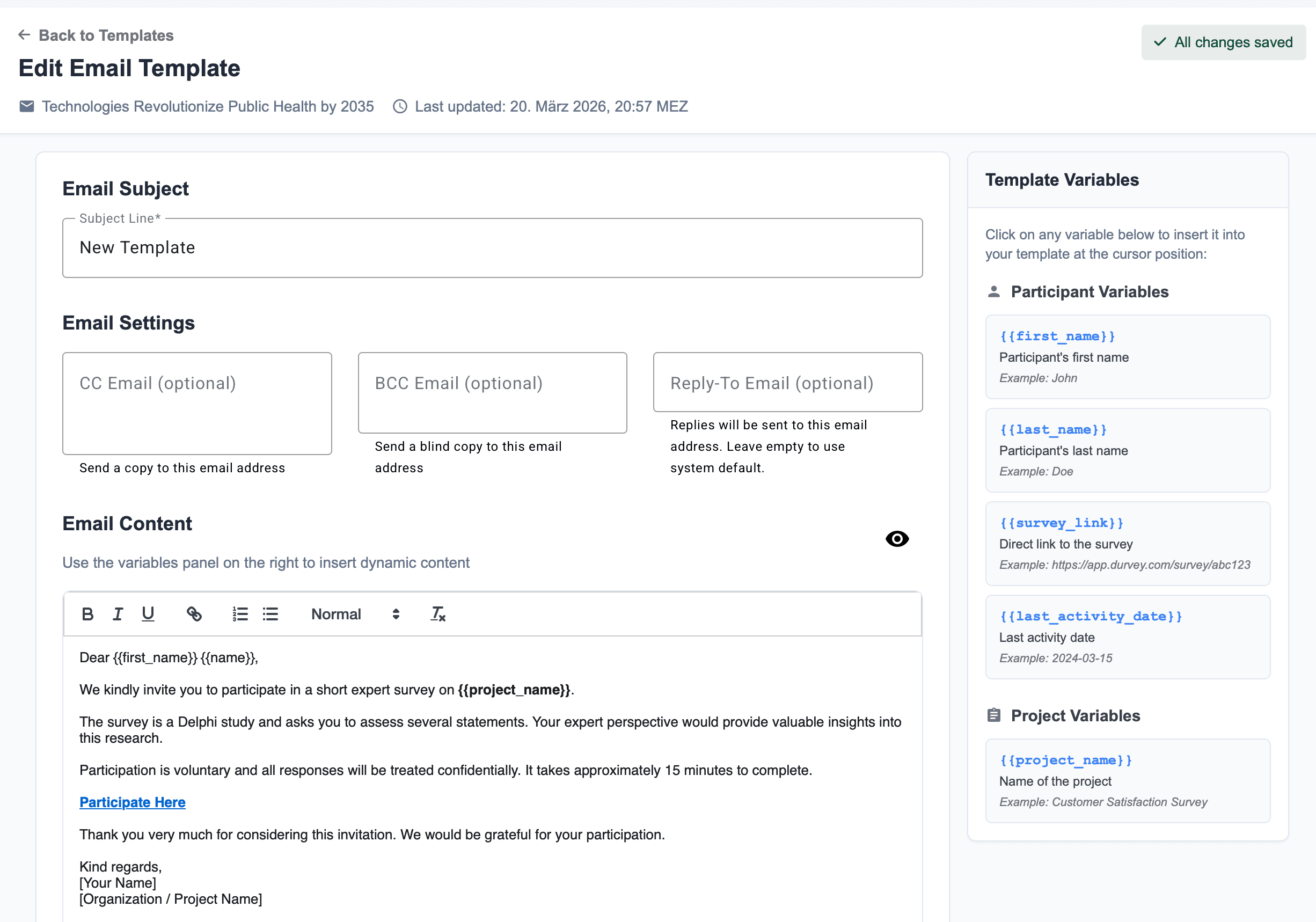
7. Send Invitation to Test Participants
Send the invitation to your test participants and complete the survey yourself.
Important
Data from test participants will be deleted automatically once the survey is started. This allows safe testing before the real study begins.
8. Final Proofreading
Before launching the real survey, review everything one last time. Check:
- Question wording
- Instructions
- Titles
- Email texts
- Scale labels
- Feedback texts
Small mistakes can affect the quality of the study, so this step should not be skipped.
9. Complete Testing and Upgrade the Survey Plan
When testing is finished, you can upgrade the survey to the required plan. Depending on your study, the plan may affect:
- Number of participants
- Available features
- Real-time feedback options
- Analytic features
- Export functions
Upgrade the plan before starting the real survey. After upgrading, the survey is ready to start.
Continue Learning
With your survey set up and tested, you're ready to move on to the execution phase.